How much does the software cost? What is the price?
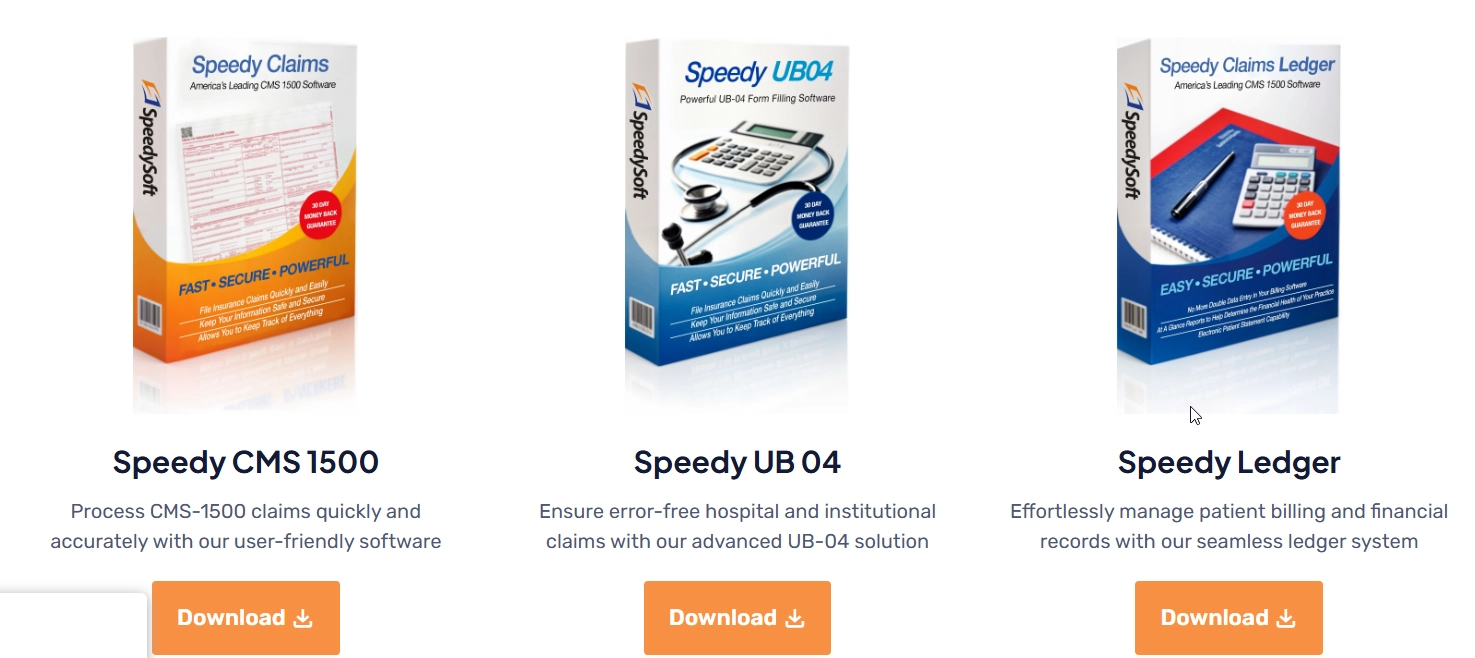
Below are the pricing options for our Medical Billing Software Solutions.
Starting at just $29.95 per month, SpeedySoft USA offers medical billing software packages tailored to fit your medical business. From small independent practices to large billing companies, choose the software that best fits your needs. Upgrade at any time.
All of our subscriptions come with unlimited Free Support and Updates.
Some other companies require you to have Microsoft Word before you can use their program. Do I need any other program to run Speedy Claims?
No, Speedy Claims is a stand alone software program. It is not a “module” for Word or any other additional expensive program. It is NOT a simple template with limited capability. Speedy Claims is a powerful database driven software program designed to be fully functional on it’s own.
Is there a "trial" download and a "purchase" download?
No, there is only one download. When you install the program you can use it for 30 days without restriction. After 30 days, when you open the program you will get the message saying you must “register” the program to continue using it.
When you subscribe we will send you a “License Number”. You will use this number to register the program. You will then have full access to it for as long as your subscription is active.
Do not uninstall the program if you are going to subscribe or you may lose any data or setup you have already entered.
Can I try the software before subscribing?
Yes, you can. Simply go to the bottom of any of our webpages and click on “Software Downloads” under the “Resources” column.
Then, on the page that appears, click on the software program you want to try..
Once it has finished downloading locate the file and double click it to install it.
Once it is installed on your computer, you will have 30 days to use the software. Most of our programs are 100% functional for the 30-day period. Nothing is turned off. Go ahead and create claims and mail them in. When you subscribe, you won’t need to redownload the software. We will send you a License Number, and you can unlock the one you are already using, so your work will not be lost.
What if my data doesn't line up on my CMS 1500 claim
When using a standard pre-printed insurance claim form, print alignment is a crucial factor in ensuring your claims are processed efficiently by the insurance company. As printers can vary in their printing capabilities, it is essential to have software that allows for adjustments to align data on any pre-printed form, making this process easy and accessible.
In your Speedy Claims software programs, it is!
Please review our print alignment instructions below. For custom support, you can always call us direct at 844-267-1500 xt 2
PRINT ALIGNMENT
Adjust your print alignment for your printer when printing on Red CMS pre-printed forms.
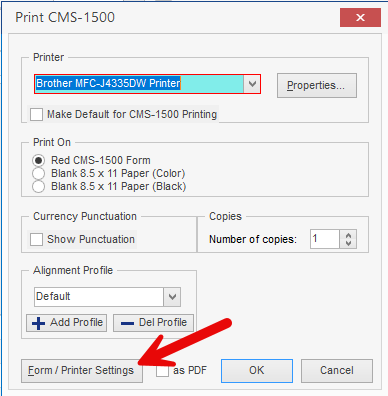
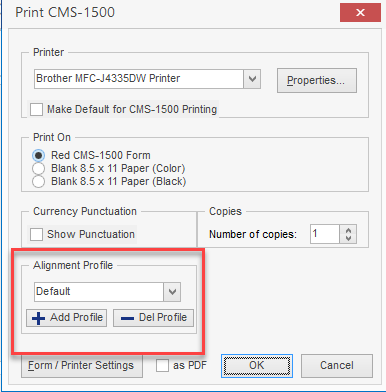
You may need to adjust the alignment when you begin with the program, switch computers, or printers. Once you have 1 claim printed and see it needs to be adjusted, highlight the claim in your claim list and select to print again. When your print screen appears, select Form / Printer Settings in the lower left corner
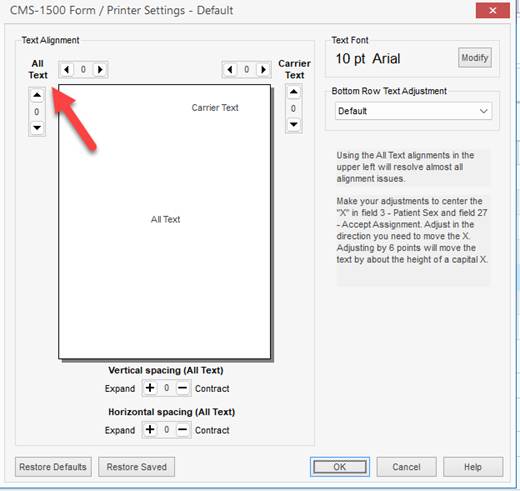
This takes you to the Printer Settings window. Use the All Text to adjust the print as needed. The arrows will adjust the direction of your text printing, approximately 1/8 inch per click.
If the top half becomes accurate, leaving the bottom needing to be moved up or down, the Vertical Spacing can be used to Expand/pull down or Contract/push up the bottom half. The Horizontal spacing can be used to expand or contract the right side in or out. Once your adjustment is correct, the setting will be saved.
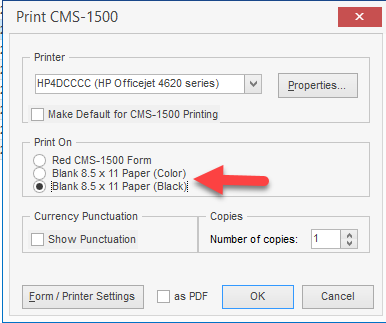
NOTE. If you are printing on blank paper and want to print an image of the form as well, select one of the Blank Paper options as your Print On option
Alignment Profile
The Alignment Profile is used to create different alignment settings for separate printers. New profiles can be added for separate printers you may be using. As print alignment can vary from printer to printer, individual printer profiles can be created, and the alignment setup customized for each printer.
What is a Single-User License?
A Single User License entitles you to install and run the SpeedySoft product on one device only. If you need to use it on more than one computer call us for multi-user or network licensing.
Do you offer different license options to accommodate multi-station offices?
Yes, we offer:
single user licenses
multi-user licenses (for peer-to-peer networks)
network licenses (for server based networks)
Contact Sales at 1 (888) 217-2303 extension 1 for pricing
Some other companies require you to have Microsoft Word before you can use their program. Do I need any other program to run Speedy Claims?
No, Speedy Claims is a stand alone software program. It is not a “module” for Word or any other additional expensive program. It is NOT a simple template with limited capability. Speedy Claims is a powerful database driven software program designed to be fully functional on it’s own.
Is there a "trial" download and a "purchase" download?
No, there is only one download. When you install the program you can use it for 30 days without restriction. After 30 days, when you open the program you will get the message saying you must “register” the program to continue using it.
When you subscribe we will send you a “License Number”. You will use this number to register the program. You will then have full access to it for as long as your subscription is active.
Do not uninstall the program if you are going to subscribe or you may lose any data or setup you have already entered.
Can I try the software before subscribing?
Yes, you can. Simply go to the bottom of any of our webpages and click on “Software Downloads” under the “Resources” column.
Then, on the page that appears, click on the software program you want to try..
Once it has finished downloading locate the file and double click it to install it.
Once it is installed on your computer, you will have 30 days to use the software. Most of our programs are 100% functional for the 30-day period. Nothing is turned off. Go ahead and create claims and mail them in. When you subscribe, you won’t need to redownload the software. We will send you a License Number, and you can unlock the one you are already using, so your work will not be lost.
What if my data doesn't line up on my CMS 1500 claim
When using a standard pre-printed insurance claim form, print alignment is a crucial factor in ensuring your claims are processed efficiently by the insurance company. As printers can vary in their printing capabilities, it is essential to have software that allows for adjustments to align data on any pre-printed form, making this process easy and accessible.
In your Speedy Claims software programs, it is!
Please review our print alignment instructions below. For custom support, you can always call us direct at 844-267-1500 xt 2
PRINT ALIGNMENT
Adjust your print alignment for your printer when printing on Red CMS pre-printed forms.
You may need to adjust the alignment when you begin with the program, switch computers, or printers. Once you have 1 claim printed and see it needs to be adjusted, highlight the claim in your claim list and select to print again. When your print screen appears, select Form / Printer Settings in the lower left corner
This takes you to the Printer Settings window. Use the All Text to adjust the print as needed. The arrows will adjust the direction of your text printing, approximately 1/8 inch per click.
If the top half becomes accurate, leaving the bottom needing to be moved up or down, the Vertical Spacing can be used to Expand/pull down or Contract/push up the bottom half. The Horizontal spacing can be used to expand or contract the right side in or out. Once your adjustment is correct, the setting will be saved.
NOTE. If you are printing on blank paper and want to print an image of the form as well, select one of the Blank Paper options as your Print On option
Alignment Profile
The Alignment Profile is used to create different alignment settings for separate printers. New profiles can be added for separate printers you may be using. As print alignment can vary from printer to printer, individual printer profiles can be created, and the alignment setup customized for each printer.
CMS-1500 & Medical Billing
What is the difference between HCFA-1500 and CMS-1500 in medical insurance billing?
The HCFA-1500 and CMS-1500 forms represent the standard paper claim form for billing Medicare and other insurance carriers. The HCFA-1500 was the original name, used when the Health Care Financing Administration (HCFA) was in place. When the HCFA was renamed to the Centers for Medicare & Medicaid Services (CMS), the form became known as the CMS-1500. The HCFA, Health Care Financing Administration, was renamed to the CMS, Centers for Medicare & Medicaid Services, in 2001.
Both the original HCFA-1500 and the current CMS-1500 are used by providers to bill medical insurance companies. They include information about the patient, the healthcare provider, and the services provided, as well as charges for those services.
Where in field 24 are the Place of Service Codes on the CMS 1500 Claim Form entered?
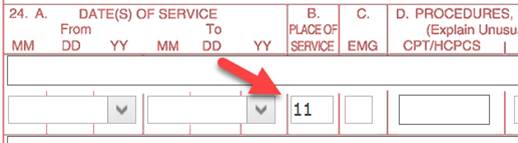
Field 24B on the CMS 1500 claim form is the field used to enter the Place of Service (POS) code. This two-digit code indicates where the healthcare service was provided.
What goes in box 25 when completing a CMS-1500 claim form?
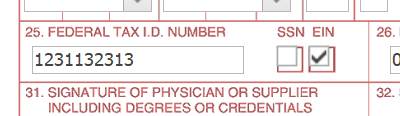
In Box 25 of the CMS-1500 claim form, you should enter the billing provider’s federal tax ID number (either Social Security Number or Employer Identification Number). This number is used to identify the provider for tax and billing purposes.
You must mark the appropriate box to the right to indicate whether you’ve entered an SSN or an EIN.
What is a ub-04 most commonly used in?
The UB-04 form, also known as the CMS-1450, is most commonly used in hospitals and other institutional healthcare facilities to bill Medicare, Medicaid, and private insurers for services provided to patients.
Generally, it’s used for:
Inpatient hospital stays
Outpatient hospital services
Skilled nursing facilities (SNFs)
Home health services
Hospice care
Certain outpatient surgery centers and rehab facilities
It includes fields for diagnosis codes, procedure codes, revenue codes, and other billing details.
What is a Taxonomy code, and where do Taxonomy codes go on a CMS 1500 claim form
The taxonomy code is a unique alphanumeric code, ten characters in length. The code set is structured into three distinct “Levels,” including Provider Grouping, Classification, and Area of Specialization. The provider self-selects the taxonomy codes, which are organized based on education and training and used to define specialty.
There is a detailed lookup for taxonomy codes based on the taxonomy code sets at https://taxonomy.nucc.org/
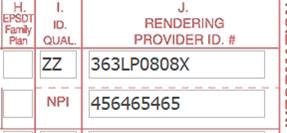
Taxonomy code placement on the CMS 1500 claim form is in fields 24j and 33b.
Taxonomy codes are entered in the shaded field above the rendering NPI in field 24j. The qualifier used to identify a taxonomy code used on a CMS 1500 form is ZZ, which is entered in 24i.
When entering a taxonomy code on the CMS 1500 form in field 33b, enter the qualifier ZZ before the taxonomy code.
How does electronic billing work for medical claims?
Electronic claims work by a practice management software generating a claim, sending it to a clearinghouse for processing, and then the clearinghouse transmits the claim to the insurance company. This process streamlines the claim submission, potentially reducing errors and speeding up the payment process.
A clearinghouse is like an electronic post office. You’ll send all your claims to them in ONE file. They’ll sort them out and send them to the right place and in the right format. Then they’ll gather all the status reports from the insurance companies and post them for you to review 24/7. Everything in one spot. One portal, one login. They charge a fee, but can save you a lot of time and frustration compared to you trying to send your claims individually.Here’s a more detailed breakdown:
Practice Management Software:
The process begins with the practice’s management software, which creates claims with patient, insurance, and procedure details. With Speedy Claims, all claims are saved to the claim list. From there, claims are selected, and an electronic batch file can be created. The file output can be in either Print Image or ANSI 837 format.
Claim Transmission:
The claim is then transmitted to your clearinghouse.
Clearinghouse Processing:
The clearinghouse performs several functions:
Claim Scrubbing: This process reviews the claim for errors or missing information, such as invalid codes, missing patient data, or incorrect formatting.
Standardization: It converts the claim into a standardized format, often ANSI X12 or 837
Error Correction: If errors are found, the clearinghouse notifies the provider, so the claim can be corrected.
Claim Submission to Insurance:
Once the claim is scrubbed and corrected, the clearinghouse transmits it to the appropriate insurance company or payer.
Payment and Adjudication:
The insurance company processes the claim, determines the amount due, and initiates payment to the provider.
For more details on the benefits of electronic billing, as well as clearinghouse recommendations, please visit
Where on the HCFA / CMS 1500 do you put resubmission codes?
Box 22 is where resubmission codes are entered on the CMS-1500 form. This box is also where the Original Reference Number of the previously submitted claim is entered.
Elaboration:
Box 22: Resubmission Code/Original Ref. No.
This field is specifically designed to indicate whether a claim is a resubmission, correction, or replacement of a prior claim and to include the original claim number.
Resubmission Codes:
When resubmitting a claim, enter the appropriate code on the left-hand side of Box 22. Common codes include:
6: Corrected Claim
7: Replacement of Prior Claim
8: Void/Cancel of Prior Claim
Original Reference Number:
Box 22 should also include the original claim number assigned by the insurance payer. This helps the payer identify the original claim and properly process the resubmission or correction.
Below is an example of a resubmission code for a corrected claim, along with the original claim number assigned by the insurance payer
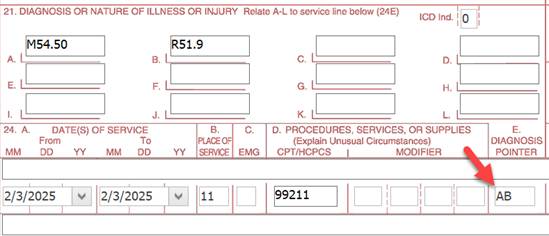
What is the diagnosis pointer code on the CMS-1500 claim form?
On a CMS-1500 form, the diagnosis pointer acts as a reference, associating the proper diagnosis code (ICD-10) with the procedure being billed.
The diagnosis pointer is entered in Box 24E on a CMS-1500 claim form. In box 24E, use the letters A through L to correspond with the diagnosis code placement in field 21. Do not use commas or other separators between the letters when multiple diagnosis pointers are entered.
Do not enter the diagnosis code in the diagnosis pointer field in box 24E; only the corresponding reference letter.
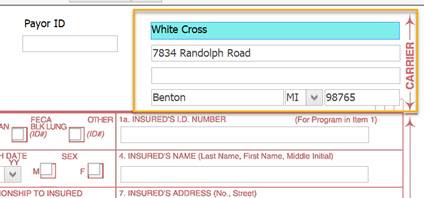
What is the Carrier box used for on a CMS-1500 claim form?
The “Carrier” box on a CMS-1500 claim form, also known as the “Payer Address” box, is used to enter the address of the insurance company or payer responsible for paying the medical claim. Accurate completion is crucial for prompt and accurate claim processing, as it ensures the claim reaches the intended insurance company
The Carrier block is typically found in the top right corner of the first page of the CMS-1500 form.
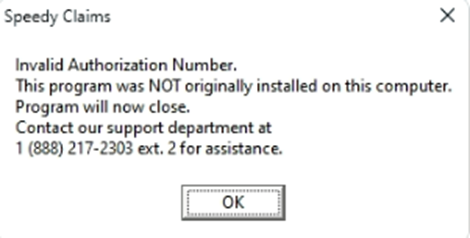
Why did I get an Invalid Authorization Number message?
When opening the program and you receive the following message.
This will occur when cloning the hard drive for a PC repair or on a switch to a new computer. It is a security feature of the software prohibiting the copy and access of your HIPAA data within the program. Call the number provided to regain access to your software and data. Do NOT uninstall or reinstall the software as this could compromise your existing database that was copied as well.
What is a Taxonomy code, and where do Taxonomy codes go on a UB04 (CMS-1450) claim form
The taxonomy code is a unique alphanumeric code, ten characters in length. The code set is structured into three distinct “Levels,” including Provider Grouping, Classification, and Area of Specialization. The provider self-selects the taxonomy codes, which are organized based on education and training and used to define specialty.
There is a detailed lookup for taxonomy codes based on the taxonomy code sets at https://taxonomy.nucc.org/
Taxonomy code placement on the UB04 claim form is in field 81 with a qualifier of B3.
Take the Next Step with SpeedySoft
Get started today with the best medical billing software. Whether you’re a solo practitioner or a large healthcare facility, we have the right solution for you.